
Specifying a cable or converter between DisplayPort and HDMI starts with the complete signal path: source output → conversion direction → display input. A forward DisplayPort-to-HDMI adapter will not work in reverse from an HDMI output to a DisplayPort monitor. For forward DisplayPort-to-HDMI connections, passive adapters perform voltage level shifting and require an optional Dual-Mode DisplayPort (DP++) source, whereas active converters translate a native DisplayPort signal without depending on DP++.
Whether evaluating a passive or an active unit, a generic "4K" label is not a complete specification. Exact resolution and refresh rate (such as 3840×2160 at 30 Hz versus 60 Hz), color format, HDR, audio, and HDCP support must be matched across the source output, the converter datasheet, the cable, and the display input. If the display endpoint uses DVI-D rather than HDMI, single-link versus dual-link rules apply instead; see DVI-D single-link vs. dual-link connections.
Which Direction Does the Signal Travel?
Protocol conversion between DisplayPort and HDMI is directional. Engineering drawings and purchase orders should identify the physical port that actually outputs video (source) and the port on the monitor that receives it (display).
Tracing the Actual Output Port and Display Input
Before selecting an adapter, trace the physical endpoints where the converter will plug in:
- Direct host or graphics card output: Confirm whether the receptacle on the PC, industrial controller, or discrete GPU is a DisplayPort output or an HDMI output.
- Docking station output (if present): When a monitor connects through a dock, the converter connects to the dock's downstream video output port. Record the exact output connector and specification on the dock itself.
- Monitor input: Confirm which input port on the display is being used and select that exact input in the monitor's on-screen menu.

Standard DisplayPort-to-HDMI adapters and cable assemblies are built for a DisplayPort output feeding an HDMI input. Reversing that assembly between an HDMI output and a DisplayPort monitor produces no signal.
Reverse Conversion: HDMI Source Output to DisplayPort Monitor Input
Connecting an HDMI source output to a DisplayPort monitor input requires a dedicated reverse converter, such as the StarTech HD2DP converter:
- Signal path: Converts an HDMI output to a DisplayPort monitor input.
- Conversion and power: Active conversion powered via an attached USB lead. The USB connection supplies operating power only, not the video signal.
- Documented mode and HDCP limits: Supports up to 3840×2160 at 30 Hz and is explicitly not compatible with HDCP 2.2.
These ratings apply specifically to the HD2DP part number. External power leads, refresh-rate ceilings, and HDCP support must be checked on the datasheet of whichever reverse converter is selected.
When Do You Need Active vs. Passive DP-to-HDMI Conversion?
For forward connections (DisplayPort source → HDMI display), choosing between passive and active conversion depends on which signal leaves the source receptacle and where protocol conversion takes place.
Which Signal Leaves the Source, and Where Does Conversion Happen?
Dual-Mode DisplayPort (DP++) is an optional capability on the source device (VESA DisplayPort Audio User Guide). That capability determines how the signal is processed across the link:
- Passive (dual-mode) signal path: When a
DP++source operates in dual mode, the source itself sends HDMI or DVI signals through its DisplayPort connector (VESA DisplayPort Audio User Guide). The passive adapter contains circuitry that performs voltage level shifting to adjust the dual-mode output to HDMI voltage levels. Because the source must emit HDMI signaling over the DisplayPort receptacle, a passive adapter requires aDP++source (StarTech DP++ FAQ). - Active protocol-conversion signal path: The source outputs a native DisplayPort signal, and the active converter receives that native DisplayPort stream and converts the protocol to HDMI inside the adapter (VESA DisplayPort Audio User Guide). Because protocol translation happens inside the converter, active conversion does not depend on
DP++at the source (StarTech DP++ FAQ).
In forward DP-to-HDMI selection, "active" defines native DisplayPort protocol conversion rather than the presence of an external USB power wire. Do not classify an adapter by looking for a USB tail; check the exact model's datasheet for its conversion architecture and power requirements.

How to Document the Source Port's DP++ State
Physical connector shape or a generic DisplayPort version number cannot establish whether a port supports DP++ (StarTech DP++ FAQ). Before approving a part, classify and record the source port using the exact motherboard, graphics card, industrial PC, or docking station manual—or written confirmation from the equipment manufacturer:
- Verified
DP++(Yes)The source manual or manufacturer explicitly lists Dual-Mode DisplayPort (DP++) on that output port. Either a passive level-shifting adapter or an active protocol converter can be evaluated against the target display mode. - Verified Non-
DP++/ Single-Mode DP (No)The source documentation confirms native single-mode DisplayPort only. Passive adapters cannot be used; evaluate an active protocol converter whose datasheet supports the target mode. - Unknown
DP++StatusIn a mixed hardware fleet or undocumented host/dock setup, an unverified port is not confirmed non-DP++. First, request the exact host, GPU, or dock specification sheet. IfDP++remains unconfirmed, an active converter can be considered to remove dependence onDP++, provided you still check that the source output, converter SKU, and display input all support the required display mode.
What Does “4K Support” Leave Out?
Specifying "4K" without refresh rate and operating conditions leaves the actual video timing undefined: 3840×2160 at 30 Hz and 3840×2160 at 60 Hz require different converter capabilities. Two forward DisplayPort-to-HDMI datasheets show how concrete passive and active SKUs differ:
| Converter / Example | Source Requirement | Documented Mode |
|---|---|---|
| Passive: StarTech DP2HD4KADAP | Verified DP++ source required |
Up to 3840×2160 at 30 Hz; HDCP 1.4 |
| Active: StarTech DP2HD4K60H | DP or DP++ source (verify full chain compatibility) |
Up to 3840×2160 at 60 Hz; lists YCbCr 4:4:4 (8-bit); HDCP 2.2 |
The passive DP2HD4KADAP demonstrates that passive conversion is not limited to 1080p, supporting up to 3840×2160 at 30 Hz and HDCP 1.4 on a DP++ source. The active DP2HD4K60H supports up to 3840×2160 at 60 Hz and HDCP 2.2, subject to model-specific datasheet conditions:
- HDR endpoint requirements: HDR on
DP2HD4K60Hrequires a DisplayPort 1.4 source and an HDMI 2.0b display. - Graphics adapter notes: NVIDIA video adapters may not support 4:4:4 chroma or 5.1/7.1 audio when used with
DP2HD4K60H. - Cable restriction: RedMere HDMI cables are excluded for
DP2HD4K60H.
These ratings are published supplier specifications for those exact part numbers, not universal ceilings for every passive or active adapter. Audio pass-through depends on the source, adapter, and receiving display system (VESA DisplayPort Audio User Guide), and separate datasheet bullets should not be combined into an assumption that peak resolution, HDR, chroma, and multi-channel audio all run simultaneously on every GPU.
Specify these together for the same operating mode.
- Color
- YCbCr 4:4:4 · 8-bit
- Dynamic range
- SDR
- Audio
- Stereo
- Protected playback
- HDCP 2.2, if required
Worked Selection Example: Why DP++ Alone Does Not Satisfy a 4K60 Request
Consider an assumed requirement where a workstation has a verified DP++ output and must drive an HDMI monitor at 3840×2160 at 60 Hz:
- Why
DP2HD4KADAPis rejected: Although the workstation port is verifiedDP++, the passiveDP2HD4KADAPdatasheet is rated only up to 3840×2160 at 30 Hz (with HDCP 1.4), so it does not meet the 60 Hz request. - Why
DP2HD4K60His a candidate for further verification: The activeDP2HD4K60His documented for 3840×2160 at 60 Hz and HDCP 2.2, making it a candidate rather than an unconditional drop-in replacement. Before approval, verify its secondary conditions against the system: confirm a DP 1.4 source and HDMI 2.0b display if HDR is needed, check the NVIDIA 4:4:4 and 5.1/7.1 audio limitation if using an NVIDIA GPU, and select a non-RedMere HDMI cable rated for the requested 4K60 mode.
How to Check the Active Resolution and Refresh Rate in Windows
When verifying a sample setup on Windows, confirm that both the intended resolution and refresh rate are active together (Microsoft Windows refresh rate guide):
- Open Settings > System > Display > Advanced display and select the target external monitor.
- Check Display information to read the currently active resolution and refresh rate.
- Under Choose a refresh rate, available options depend on hardware support, and refresh rates marked with an asterisk (
*) also change the display resolution to a compatible timing. After changing a refresh rate, re-verify both the resolution and refresh rate together, and verify HDR, audio, and HDCP playback separately.
What Should You Specify Before Ordering?
Provide suppliers with a complete link specification and require an exact-SKU datasheet response before approving a bill of materials.
Reusable RFQ / Engineering Requirements Example
| Item | Requested Condition (Assumed Example) | Required Supplier / Engineering Check |
|---|---|---|
| 1. Direction & Endpoints | Record host/GPU/dock model and DP output; display model and HDMI input | Confirm converter SKU is built for forward DP source → HDMI display operation |
2. Source DP++ State |
Record Verified DP++, Verified non-DP++, or Unknown with manual reference |
Request source documentation first if Unknown; if unresolved, evaluate an active candidate subject to exact mode compatibility |
| 3. Target Video Mode | 3840×2160 at 60 Hz, YCbCr 4:4:4, 8-bit, SDR |
Confirm converter SKU and endpoints support these parameters together on the target GPU family |
| 4. Audio & HDCP | 2-channel stereo audio; HDCP 2.2 (when protected playback is required) |
Verify audio pass-through and required HDCP version across source, converter SKU, and display |
| 5. Power & Cable | Record HDMI cable part number/length and whether source has a spare USB port | Check converter SKU power needs and confirm cable supports the target mode while respecting SKU rules (e.g., no RedMere on DP2HD4K60H) |
Engineering Acceptance Record Fields
A visible desktop image does not complete qualification. When testing a sample, record the actual host/GPU/dock model, OS/driver version, converter SKU, HDMI cable part number/length, each single variable changed, and requested vs. observed results for:
- Active timing: Observed resolution and refresh rate verified together in OS display information and, where available, the monitor OSD.
- Color and dynamic range: Observed color format (RGB or YCbCr 4:4:4 vs. 4:2:0), bit depth, and SDR/HDR status.
- Audio and protected playback: Observed audio output on the required channel count and playback of HDCP-protected media (when required).
Bare Cable Connectors vs. Complete Converters
When building custom harnesses rather than buying finished adapters, Renhotec's RHT-605-2507 20-pin straight male DisplayPort connector with metal case (under DisplayPort connectors) is for terminating cable wire. Its product page does not document conversion circuitry or a supported display mode, so this listing is not evidence of a complete converter.
What Should You Check When the Link Fails?
Isolate a failed or degraded connection by changing one variable at a time (StarTech video adapter troubleshooting FAQ). Test individual components—source, converter, cable, and display—in a known-working compatible setup, test with a short known-working cable, and verify that every part in the chain supports the target resolution.
Bypassing the converter with a direct source-to-display cable applies only when both devices share a matching native interface (such as testing the monitor's HDMI input from a known-good native HDMI source); never force unlike DisplayPort and HDMI ports together without a converter. Changing one component and observing a different outcome narrows the suspect parts rather than proving a single fault in isolation.
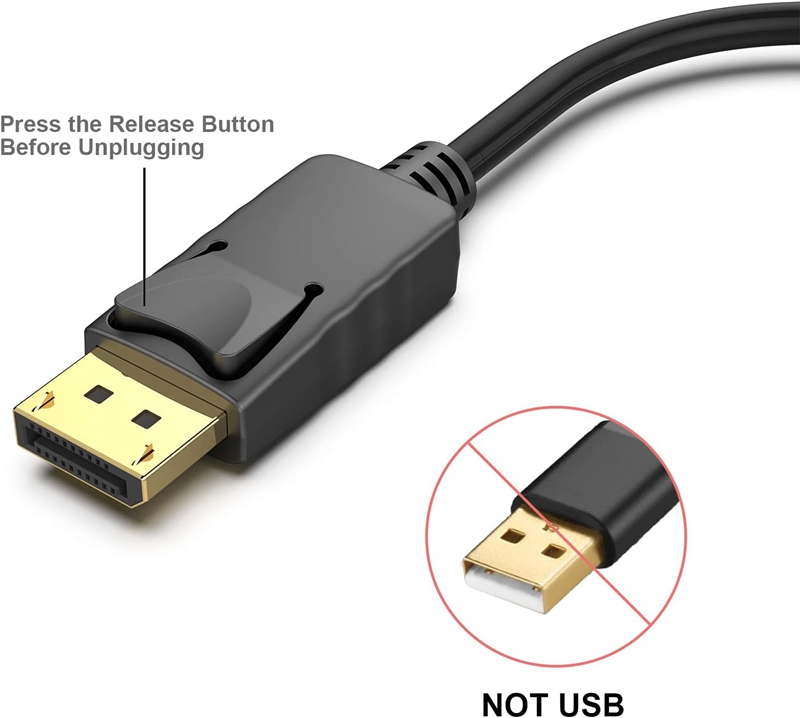
The DP plug pictured in the EB-103-0040 gallery has a release button. Press it before removing this plug, then change only the component you intend to test.
| Symptom | Next Isolation Test (One Variable at a Time) | What the Result Tells You |
|---|---|---|
| No picture / "No Signal" | Trace actual source/dock output → monitor input; connect any SKU-documented USB power lead (e.g., HD2DP); if using a passive adapter, check source DP++ documentation or test the adapter in a known-working DP++ setup. |
A reversed forward cable or unpowered USB power lead warrants correcting direction or power first; if a passive adapter works on a verified DP++ host but not the target source, the swap does not establish the target port's DP++ state. Check its manufacturer documentation and source/converter compatibility. |
| Picture appears, but 3840×2160 at 60 Hz is missing | Check active resolution and refresh rate together in Windows Advanced display (watching for * rates that change resolution), compare against the converter SKU datasheet (DP2HD4KADAP vs. DP2HD4K60H), and test with a short known-working passive HDMI cable. |
If the SKU is rated only for 30 Hz (DP2HD4KADAP), it is a specification mismatch for 60 Hz; if a 60 Hz SKU (DP2HD4K60H) still drops to 30 Hz, check the source/display settings, endpoint limits, cable, and SKU restrictions (such as a RedMere cable on DP2HD4K60H). The observed rate alone does not locate the fault. |
| Picture works, but no audio on HDMI display | Confirm source, converter SKU, and display all support audio, test 2-channel stereo vs. 5.1/7.1, and test the display's HDMI audio from a known-working native HDMI source. | Stereo working where 5.1/7.1 fails on an NVIDIA source with DP2HD4K60H is consistent with that SKU's documented NVIDIA note; if all audio modes fail, the native-HDMI bypass narrows the suspect between the display and the source/converter path. |
| Desktop appears, but protected playback fails | Compare the required HDCP version against the source, converter SKU datasheet (DP2HD4KADAP is HDCP 1.4; HD2DP is not HDCP 2.2 compatible; DP2HD4K60H lists HDCP 2.2), and monitor input. |
A desktop image confirms basic video timing only; if any active component lacks the required HDCP version, the chain cannot be qualified for that protected playback mode. |
Log the before-and-after state of each single-component test in the acceptance record before approving a replacement SKU.